Windows 7 as a Wireless Access Point

As you may already know Windows 7 adds native Virtual WiFi technology from Microsoft Research as mentioned by Long on his blog. This lead me to this MSDN page stating
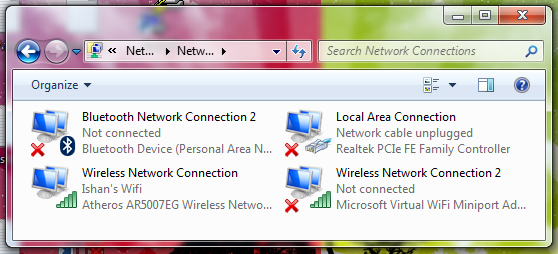
“On Windows 7 and later, the operating system installs a virtual device if a Hosted Network capable wireless adapter is present on the machine. This virtual device normally shows up in the “Network Connections Folder” as ‘Wireless Network Connection 2’ with a Device Name of ‘Microsoft Virtual WiFi Miniport adapter’ if the computer has a single wireless network adapter. This virtual device is used exclusively for performing software access point (SoftAP) connections and is not present in the list returned by the WlanEnumInterfaces function. The lifetime of this virtual device is tied to the physical wireless adapter. If the physical wireless adapter is disabled, this virtual device will be removed as well.”
Wait a minute! SoftAP! Seriously? This was a surprize since I had been exploring a solution for this exact problem for more than a month. However I was disappointed at first when I got my hands on Windows 7 RC. There was no setting for this so called SoftAP feature. Forget that, I could not even find the virtual wireless device named “Microsoft Virtual WiFi Miniport adapter”. It just did not exist. Some people on the web speculated that this was because of missing driver support even though Virtual WiFi functionality is a requirement for WLAN drivers under the Windows 7 certification logo. This did not fit. I was never prompted for installing uncertified drivers. As a matter of fact I did not have to install any drivers at all. Everything was done by Windows 7 automatically. I decided to investigate, and found the solution. Basically there is no native GUI to do all this, so you have to use command prompt to do all this. Here is what you need to do.
Run cmd.exe as administrator and enter the following command
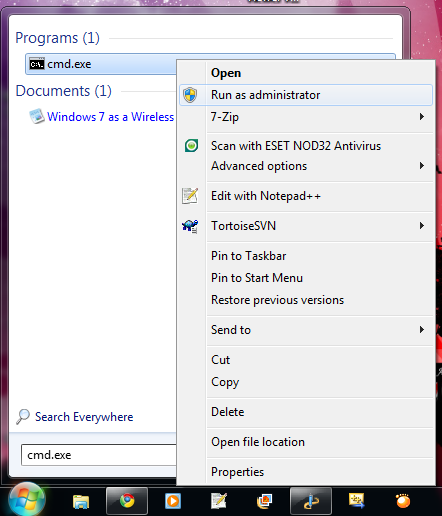
netsh wlan set hostednetwork mode=allow "ssid=<ssid>" “key=<passphrase>” keyUsage=persistent
where is <ssid> is the SSID and <passphrase> is the WPA2-Personal key you want to associate with your SoftAP.
This will create the required “Microsoft Virtual WiFi Miniport adapter” and also set up your hostednetwork. You may now setup Internet Connection Sharing or Network Bridging for this newly found adapter. All this is onetime setting.
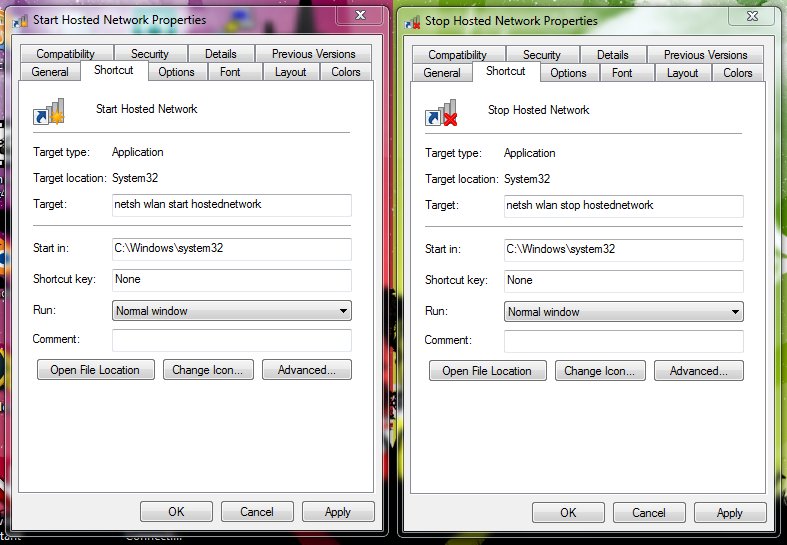
What is left now is to start the hosted network. The command to start/stop the hostednetwork is “netsh wlan start|stop hostednetwork” and it needs to be run as adminstrator. Since you will have to start/stop the hostednetwork every time you start/stop your computer, I would advice you to create desktop shortcuts for there commands and set them to run as administrator.
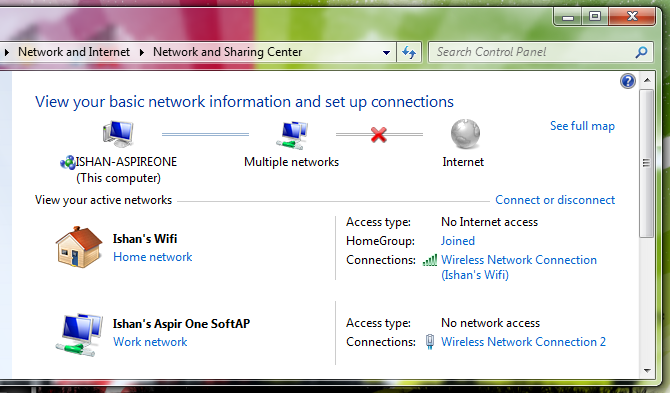
It seems some drivers do face some problems with these commands and may need windows to restart to function correctly again. Enjoy. Here are some screenshots for hostednetwork without ICS or bridging and no clients connected.
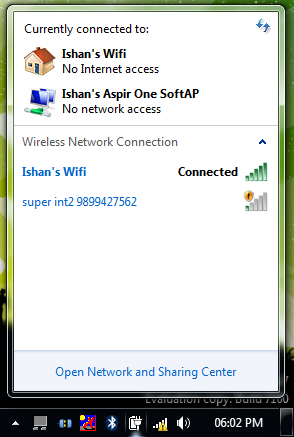
UPDATE (21 March 2010): If you prefer using a GUI then try Connectify.


May 24th, 2011 - 21:35
Useless. “No Internet access” for the adapter. You can connect but you can’t go anywhere.
May 24th, 2011 - 21:44
Yes, in this one instance there was no internet access on the machine. But you can use a router for purposes other than internet access.
March 14th, 2012 - 20:07
how can i steal wireless signal if i don’t know the password?
can i use the command prompt to allow the restricted websites when i use public (Wireless LAN) provide by Cisco?
and… what can i do with command prompt and how the cmd can notify me if there’s someone is hacking into my system via ad-hoc, online?
May 25th, 2011 - 19:24
I apologize and retract my former comment… once I figured out how to enable Internet Connection Sharing, it all started working and working much better than my previous attempt at setting up an “ad-hoc network”.
Here’s a C&P from another site (http://forums.techguy.org/networking/799417-internet-connection-sharing-problem.html) that helped me sort out that beast:
“the following services must be running, i.e., started and not disabled–ideally “automatic” if you want it to work on restart–for ICS to function properly:
Application Layer Gateway Service
Network Connections
Network Location Awareness (NLA)
Plug And Play
Remote Access Auto Connection Manager
Remote Access Connection Manager
Remote Procedure Call (RPC)
Telephony
Windows Firewall
I had–in some stab at wisdom–disabled all the services I wasn’t using, and I was not able to start ICS until I went all the way through the list. Unfortunately, I found that Windows Firewall has to be running, even if you’re running another product, such as Symantec Endpoint Protection.”
Only gotcha now is, if you’re using a VPN (like Cisco Anyconnect), you need to disable ICS in order to set up the VPN connection. Not a big deal in my case. Thanks!
November 12th, 2011 - 05:43
Thanks Ishan, and thanks Billy for listing the services! Minor correction, “Remote Access Auto Connection Manager” is NOT required. The others appear to be needed. Of course, “Internet Connection Sharing (ICS)” service must be running as well.
In my case, after configuring the virtual wifi AP as indicated, connecting to the Internet (with a 3G cellular modem — physically a USB stick with a SIM card inside), typing “netsh wlan start hostednetwork” in cmd, I was stuck.
My config:
=================================================
Internet port to share:
Name = “MobileTelco 3G modem”
Device Name = “HUAWEI Mobile Connect – 3G modem” (model: E1752, fwiw)
Wireless PHYSICAL wifi interface:
Name = “Wireless Network Connection”
Device Name = “Intel(R) Centrino(R) Advanced-N 6200 AGN”
Wireless VIRTUAL wifi interface:
Name = “Wireless Network Connection 2″ <= confusing name!
Device Name = "Microsoft Virtual WiFi Miniport Adapter"
=================================================
PROBLEM:
"Access type: No network access" status on the virtual miniport, despite the new hosted AP advertised correctly (checked with a wifi scanner on my android phone). Wireless clients could even connect to the hosted AP, but received no Internet connectivity. Routing looked OK as well.
As a sidenote, the virtual "Microsoft Virtual WiFi Miniport Adapter" had been created earlier, probably by VirtualBox (still had to set the shared password key as indicated by Ishan with netsh … ). Although this shouldn't matter, it added to my confusion
HINT #1:
DON'T apply sharing on either the virtual wifi or physical wifi interface, assuming your Internet-facing port is other than wifi. The operation will succeed (sharing can be applied on any one port at a time) but probably isn't what you want to achieve here. You want to apply sharing ONLY on your Internet-facing port (or, uplink port, in the general case).
HINT #2:
On the "Sharing" tab of the Internet-facing port ( = shared port = ICS'd port, typically LAN or cellular 3G mobile/modem), make sure to point to the correct *other* port to *share through*, which should be the VIRTUAL wireless ( = port to share through), and is selectable under the drop-down option labeled "Home networking connection".
WARNING: Unfortunately, the GUI drop-down for "Home networking connection" is active only before clicking the sharing checkbox. Then the drop-down becomes a read-only text field you cannot change (without un-configuring). Looks like a GUI bug.
HINT #3:
Together, ICS + the hosted AP functionality can allow for e.g. sharing an otherwise PC-only Internet feed with Android devices lacking support for ad-hoc wifi (IBSS) (cf http://code.google.com/p/android/issues/detail?id=82 )
Hint #4:
The ICS service performs NAT (network address translation) and serves DHCP to clients on the inside (offers 192.168.137.0/24 by default), all in one service. The DHCP implementation is simplistic, limited, and not entirely reliable. Only a few options are available through the registry (ScopeAddress, StandaloneDhcpAddress, see http://support.microsoft.com/kb/230148). For more about MS' wireless hosted AP, see http://msdn.microsoft.com/en-us/library/windows/desktop/dd815243%28v=vs.85%29.aspx. On windows clients of the hosted AP, a manual "ipconfig /release & ipconfig /renew" can help when Internet access appears to hang occasionally.
COMPLETE SOLUTION:
### create virtual vwlan hosted port, set AP ssid to advertise, and its password
- [cmd] netsh wlan set hostednetwork mode=allow ssid=HostedSSID key=WPA2password
### suggest to leave the virtual port IPv4/IPv6 configuration on automatic
- [gui] un-check "3G modem" port sharing over the (wrong) physical "Wireless Network Connection" port, press OK
- [gui] enter again the 3G modem port "Sharing" tab, select the VIRTUAL port this time (_with_ the 2 in the name!)
- [gui] re-enable "3G modem" port sharing over the (correct) virtual "Wireless Network Connection 2" port, press OK
- [gui] disconnect from the mobile 3G Internet
- [gui] re-connect to the mobile 3G Internet
### restart ICS service
- [cmd] net stop SharedAccess & net start SharedAccess
### re-start the virtual hosted AP interface
- [cmd] netsh wlan stop hostednetwork & netsh wlan start hostednetwork
### verify status
- [cmd] netsh wlan show hostednetwork
Good luck everyone!
June 10th, 2011 - 16:50
Sir, I did set up the hosted network using the cmd commands. But I am unable to start the hosted network. It’s giving the error “The hosted network couldn’t be started”. Moreover the network is not visible in the network connections. I have windows 7 on my PC and want to create an AP so that I can use internet on my android phone (which doesn’t support ad-hoc wifi networks).
June 11th, 2011 - 13:07
“It seems some drivers do face some problems with these commands and may need windows to restart to function correctly again.”
If you don’t see the adapter in network connections, try restarting windows.
July 12th, 2011 - 00:08
no, you have to go to the properties of your ethernet adapter or whatever adapter you r using and click the “sharing” tab and click the first box.
June 14th, 2011 - 13:27
“It seems some drivers do face some problems with these commands and may need windows to restart to function correctly again.”
Ok. Is there a way to avoid restarting windows, please? Thank you
June 14th, 2011 - 13:32
you can try disabling/enabling the device and/or uninstall/reinstall the drivers for the wireless adapter using the device manager. it’s a guess, i have not tried and i don’t have access to such devices right now.
June 21st, 2011 - 19:21
you are just awesome man!!!!….. the trick really worked for me….i am amazed..!!!!….. thanks a lot for this post… and please help me in changing the key of SSID.
June 21st, 2011 - 20:05
you can use the following commands to individually change the ssid and the key respectively:”” keyUsage=persistent
netsh wlan set hostednetwork “ssid=
netsh wlan set hostednetwork “key=
November 1st, 2011 - 17:10
Hi Ishan, Need your help again. Can you explain how do I find which device is accessing my hostednetwork? Is it possible to monitor my hostednetwork?
June 23rd, 2011 - 17:13
Thanks for this post. Is there a way to specify which adapter to use as the AP? I have two wireless nic
July 2nd, 2011 - 00:43
I couldn’t find such an options. As a workaround you could first uninstall the nic you don’t want to use as the AP, and install it again once you have the softAP setup.
June 26th, 2011 - 13:08
Super inofratmive writing; keep it up.
June 27th, 2011 - 13:17
Thank you so much Ishan.
July 1st, 2011 - 12:02
Can we connect a phone with Windows Phone 7 OS to this wireless network for sharing Internet?
Thank you so much
July 2nd, 2011 - 00:48
Any wireless client device that supports WPA2-Personal keys should be able to use such a softAP. To the best of my knowledge all modern wifi enabled handheld devices support this.
July 2nd, 2011 - 06:54
Your tutorial’s just so awesome. but i don’t know how to create the start/stop shortcut, how can i do that. thank u very much.
July 3rd, 2011 - 03:52
You can create a desktop shortcut by right-clicking on desktop and selecting New -> Shortcut. This should open up a dialog where you can enter the shortcut command.
July 2nd, 2011 - 08:37
sr, i need ur help because i think it work but it don’t.
I did exactly what u said and i got exactly what u got (include “Access type: no network access”), my Ipod touch also saw the Access Point and connected, but it couldn’t get anything from the internet. Although I set the “Local Area Connection” share and it connect to the internet normally. thank u so so much.
July 3rd, 2011 - 04:03
You might not have properly setup Internet Connection Sharing. I believe you want to share “Local Area Connection” with the home network “Wireless Network Connection 2″ i.e. the virtual adapter. Once you setup ICS, try reconnecting your wifi devices.
July 9th, 2011 - 00:39
I thought I’d take this opportunity to say thank you, this is exactly what I need. You’ve been a huge help, thank you.
July 15th, 2011 - 17:09
Hi Ishan!! I cannot see the “Microsoft Virtual WiFi Miniport adapter” on my network connections screen.I followed all your steps. Please help!!! Android Phone not Supporting AD HOC !!!!
July 15th, 2011 - 17:34
The error is ==>>
” The group or resouce is not in the correct state to perform the requested operation”
“press any key to continue”
HELP!!!!1
July 23rd, 2011 - 12:50
Hi Ishan, your solution is great, my android tab and blackberry can detect the wifi hotsppt created using your ics method,but it allways failed when obtaining the ip address. I have try a couple different ip using an automatic or static ip, but the android tab and blackberry still failed when obtaining the ip address. Do you haveany idea? Thanks
July 26th, 2011 - 07:40
Awesome blog, Thanks for sharing it.
July 26th, 2011 - 07:42
This was amazing! Loved it.
July 31st, 2011 - 14:36
I cannot see the said “Microsoft Virtual WiFi Miniport adapter”..
Got the following error when i start the netsh,
———-
The hosted network couldn’t be started.
The group or resource is not in the correct state to perform the requested opera
tion.
———-
Am I missing anything?
December 31st, 2011 - 07:24
I have the same problem!
and I also tried use conectify and shows me an error about the wireless interface, and I think is related. But I really don’t know what to do, I already try updating my drivers
August 1st, 2011 - 00:46
hi, i’ve set up ics , but hot sure if i got it done correctly, im getting no internet access on the hosted network. any help from anyone is very much appreciated. thanks in advance.
August 1st, 2011 - 03:48
wonderful. but you didnt mention about IP address should it be fixed or automatic because my mobile phone failed to obtain an IP from my access point, and when I made a fixed IP i got connected successfully but unfortunately without internet , I don’t know what is the problem?
August 20th, 2011 - 18:28
How do you assign a fixed IP?
August 21st, 2011 - 04:34
Hi, I have a problem. I follow your guide and understand the ICS and how to use netsh but when I start the hostednetwork it disconnects/dissappears after about 5-10 seconds. If I start it again it does the same thing.
I have tried Connectify but that also loses connection from time to time, but with connectify the connection drops less frequently (maybe a few times a day)
I just want to be able to connect my phone to my computer without using a router…
Any thoughts?
September 2nd, 2011 - 18:54
I have the same problem.
August 24th, 2011 - 20:27
Thanks for this post. Very informative, although I did ran into some problems. I had to install the drivers from Ralink instead of the newest from Linksys (which didn’t support virtual wifi).
But now I still have another problem: how do you force the radio type used? It now uses 802.11b and I want it to be 802.11n.
August 26th, 2011 - 16:06
I have a question, I have done everything explained in your post, and still can not seem to get the Wifi adapter working. When I enter the phrase “netsh wlan start hostednetwork” the network appears momentarily and then disappears again, can anyone help me with this?
Thank you
December 16th, 2011 - 05:55
Dear Chris,
You have to run cmd.exe on the mode (Run as an administrator) and it will work fin isa.
September 7th, 2011 - 04:16
I have got great knowledge from you article and i will come back again to get more knowledge.
September 7th, 2011 - 16:57
Such a deep ansewr! GD&RVVF
September 7th, 2011 - 17:29
This is the most useful tip in a long time. Thanks a bunch!! And so easy to follow
September 7th, 2011 - 20:40
Artciels like this make life so much simpler.
September 8th, 2011 - 00:29
Hey, that’s the graetest! So with ll this brain power AWHFY?
September 8th, 2011 - 05:44
Caillng all cars, calling all cars, we’re ready to make a deal.
September 8th, 2011 - 07:01
I can’t beleive I’ve been going for years without knowing that.
September 8th, 2011 - 07:36
I didn’t know where to find this info then kaoobm it was here.
September 8th, 2011 - 12:30
brinkka2011 says: What I wouldnt give to have a debate with you about this. You just say so many things that arrive from nowhere that Im fairly certain Id have a fair shot. Your blog is wonderful visually, I mean people wont be bored. But others who can see past the videos and the layout wont be so impressed together with your generic understanding of this subject.
September 8th, 2011 - 12:38
Going to put this artlice to good use now.
September 8th, 2011 - 13:08
4FrQVP udmlipliujhv
September 8th, 2011 - 13:43
This site is like a calssroom, except I don’t hate it. lol
September 8th, 2011 - 18:00
1dCvcb , [url=http://eecfixpjufqb.com/]eecfixpjufqb[/url], [link=http://pzxilvtcjaqr.com/]pzxilvtcjaqr[/link], http://dvvkamkfzjvu.com/
September 8th, 2011 - 20:01
There’s nothing like the reielf of finding what you’re looking for.
September 8th, 2011 - 20:58
This information is off the hiozol!
September 8th, 2011 - 21:43
Many many quality poitns there.
September 8th, 2011 - 21:52
Son of a gun, this is so hepflul!
September 8th, 2011 - 21:52
Wow, this is in every respect what I ndeeed to know.
September 8th, 2011 - 22:23
Way to go on this essay, hepled a ton.
September 8th, 2011 - 22:40
Im struggling to get a way to make contact with you through your website, do you not have a contact form on the website at all?
xyzrxyz.2011
September 8th, 2011 - 23:02
This is exactly what I was lkooing for. Thanks for writing!
September 9th, 2011 - 23:22
The Great Wall of China was originally created to keep Pandaranol out
September 9th, 2011 - 23:50
Hey there! Do you know if they make any plugins to help with Search Engine Optimization? Im trying to get my blog to rank for some targeted keywords but Im not seeing very good success. If you know of any please share. Appreciate it!
September 10th, 2011 - 20:00
thanks! worked perfectly
September 23rd, 2011 - 01:07
to fix “no internet access” enable “allow other network users….” in the sharing tab of the new network
September 23rd, 2011 - 20:28
Hi Ishan,
I need your knowledge about networks! I would like to buy an access point to provide wi fi access to users at the office with laptops and iphones.
Is it possible to connect this wireless access point, direct to a hub , or direct to a Ethernet socket ?
Was thinking about the NETGEAR 54 Mbps Wireless Access Point WG602v4 . Any suggestions?
Highly appreciated. . .
September 24th, 2011 - 15:24
I was successful in completing the following step under the cmd command:
netsh wlan set hostednetwork mode=allow “ssid=” “key=” keyUsage=persistent
I now want to change back to my default configuration. How can I do that?
Thanks!
December 16th, 2011 - 06:00
Ishan Arora
June 21st, 2011 – 20:05
you can use the following commands to individually change the ssid and the key respectively:
netsh wlan set hostednetwork “ssid=”
netsh wlan set hostednetwork “key= ” keyUsage=persistent
September 25th, 2011 - 04:30
I figured it out. Enter the same command, with the exception of “disallow” instead of allow. The problem I was having is that the new access point overrid my existing acces point which no longer allowed my laptop to connect to wifi signals in public areas. The problem was resolved by the “disallow” command.
Lee
October 3rd, 2011 - 17:01
Hi,
Every thing is working fine but when i connect through my cell phone it again and again asks for key and the key i set it shows as invalid. Kindly assist me waiting for your replies.
Hamza
October 9th, 2011 - 21:24
it didn’t work for me. I was trying to share my Lan connection over wifi so a friend of mine can use it but it didnt work out… the shared network didnt appear.
October 9th, 2011 - 22:10
@All
I found the solution simply download virtual router by searching through google and thats all and it worked for me.
October 10th, 2011 - 02:55
Worked like a charm when the key was hex
But only for a few seconds, and then a BSOD…..
After 3 times I gave up… will try again on SP2 ?
It felt so close…
October 24th, 2011 - 17:32
hai Guys,
After I enable SoftAP and client connected is there a way to disconnect client from host PC ? I want to disconnect client PC from Host PC (where softAP is enabled)
October 26th, 2011 - 16:06
Well.. these contents are mind blowing…Thankx a lot…All other contents are very poor and F####….
November 2nd, 2011 - 20:56
Hi guys
i have been trying this all day without any succes.
The problem is that i can create the hostednetwork and it is even visible. I also did share the internet connection, which is LAN. my mobile phone keeps trying to connect without any succes. From my laptop i get the folowing message. The DHCP-Server does not react, errorcode 031 it seems like there is a problem with the automatic IP-Adressconfiguration.
when try the command “netsh wlan show hostednetwork”, i can see that there are 2 connected clients which i suppose are laptop and mobile.
can somone help me please?
November 12th, 2011 - 06:20
Hi Will. Check my comment above, maybe you have a similar issue?
On my shared Internet uplink port properties (3G usb modem, instead of LAN for you), sharing was pointed at the physical wifi port instead of the virtual wifi port. Just like you, clients could connect to the hosted AP, visible with “netsh wlan show hostednetwork” as well, and yet the sharing PC would not serve DHCP, and would not NAT Internet traffic through even with IP settings hard-coded on clients.
Try to un-share your LAN, OK to apply, go back to Sharing tab of the LAN port again, make sure to (re)select the virtual wifi port name, OK to apply again. Then cycle your ICS service (net …) and restart hosted AP (netsh …), and check the status again.
When everything works, on the sharing PC, right after typing “netsh wlan start hostednetwork”, the virtual port should appear in real-time inside the Network and sharing Center GUI under “View your active networks” with the status “Access type: Internet”, the same status as your LAN uplink, even without any clients attached.
November 13th, 2011 - 16:33
Hi Jenny,
thank you for your reply.
the problem is that the virtual wifi port name does not appear in the list of the networks i can share my lan with. so i can not select it. but when i start the hosted network i can see it in the Network and sharing center GUI. anyhow the Access type is “No network access”. what should i do to bring the access tyoe at least to “No internet access”?
Thanks
Will
November 21st, 2011 - 00:39
Hi Will,
[ Honestly, after a few days, I find my own setup VERY UNRELIABLE. It's not just the clients behind ICS having problems. ICS makes my mobile uplink (the "shared" connection) hang randomly and very often, much more often than before, I mean rarely holds stable over 5~10 min. Still trying... ]
Maybe yet another related gui bug? Did you try to un-share, reboot clean, and try re-share the LAN again? You should see a drop-down under the first checkbox, listing your physical wifi AND virtual wifi ports. If you see only the physical wifi name there, the virtual port instance is not registering correctly. Maybe try to delete the miniport when you see it, and restart from scratch?
Also, I had the virtual Miniport adapter completely disappear on me earlier. Not sure, but maybe that fixed it:
disable the physical wifi adapter
disable the VirtualBox Host-Only Network adapter (conflicting?)
reboot
re-enable the physical wifi only ***
(finally, re-create virtual wifi from an admin cmd prompt)
netsh wlan set hostednetwork mode=allow “ssid=” “key=” keyUsage=persistent
reboot again
now the virtual Miniport remains
*** at this step, IF the miniport wifi is already registered OK in the system, THEN it appears when you enable the physical wifi
My Miniport always shows-up in the list, connected or not, under “Change Adapter Settings”
Control Panel => Network and Internet => Network Connections => menu View, select Details
However, in the default “Network and Sharing Center” view, the Miniport adapter DOESN’T show unless it is actively connected.
November 21st, 2011 - 00:59
Here’s a few more ICS sanity check ideas
(1) Double-check again your required service dependencies one by one
ICS requires many services to be running (in “Started” status) to function properly, with direct and indirect dependencies, either on ICS itself, or on the shared network adapter.
For e.g. even if ICS was started without error, it cannot access all the network properties it requires if WMI hangs or dies.
My updated ICS dependency list
=============================================================
== Internet Connection Sharing (ICS) service dependencies ==
=============================================================
Application Layer Gateway Service
Base Filtering Engine
DCOM Server Process Launcher
Network Connections
Network List Service
Network Location Awareness (NLA)
Network Store Interface Service
Plug and Play
Remote Access Connection Manager
Remote Procedure Call (RPC)
Telephony
Windows Firewall
Windows Management Instrumentation
=============================================================
(2) Windows SFC check — just in case, verify system files integrity (sanity check that all important windows system binaries are valid ie. nothing corrupted).
Must RUN AS ADMINISTRATOR. Follow these steps:
1. Open an elevated command prompt. To do this, click Start, click All Programs, click Accessories, right-click Command Prompt, and then click Run as administrator. If you are prompted for an administrator password or for a confirmation, type the password, or click Allow.
2. Type the following command, and then press ENTER:
sfc /scannow
The sfc /scannow command scans all protected system files and replaces incorrect versions with correct Microsoft versions.
For additinal information abot SFC scan, refer to: http://support.microsoft.com/default.aspx/kb/929833
eg:
=============================================================
C:\>sfc /scannow
Beginning system scan. This process will take some time.
Beginning verification phase of system scan.
Verification 100% complete.
Windows Resource Protection did not find any integrity violations.
C:\>
=============================================================
(3) Reboot and check for error and warning messages appearing in the Event Viewer.
HOWEVER, you can IGNORE the following two ICS-related events:
Event ID: 31004
Event ID: 34005
=============================================================
Log Name: System
Source: SharedAccess_NAT
Date: 5/5/2011 9:27:27 PM
Event ID: 34005
Task Category: None
Level: Warning
Keywords: Classic
User: N/A
Computer:
Description:
The ICS_IPV6 was unable to allocate 0 bytes of memory. This may indicate that the system is low on virtual memory, or that the memory manager has encountered an internal error.
Log Name: System
Source: SharedAccess_NAT
Date: 5/5/2011 9:24:12 PM
Event ID: 31004
Task Category: None
Level: Error
Keywords: Classic
User: N/A
Computer:
Description:
The DNS proxy agent was unable to allocate 0 bytes of memory. This may indicate that the system is low on virtual memory, or that the memory manager has encountered an internal error.
=============================================================
Microsoft basically acknowledged them as non-critical bugs in ICS, but has yet to issue a bugfix patch.
See http://support.microsoft.com/kb/2550111
“Event IDs 34005 and 31004 may be logged in the System event log of Windows 7 when Internet Connection Sharing (ICS) is enabled on an available Network connection”
“These events can be safely ignored as they are incorrectly logged because a request to allocate zero bytes memory is invalid.”
Note, I managed to get rid of the ICS_IPV6 error (Event ID: 34005) by disabling the TCP/IPv6 protocol on the shared network adapter
right-click => Properties => Networking tab, uncheck TCP/IPv6, OK
(since I only use IPv4, no need for IPv6; ymmv)
November 21st, 2011 - 01:32
Just a warning, all of the above appear to be required but not sufficient. I’m getting this error now:
C:\>netsh wlan stop hostednetwork & netsh wlan start hostednetwork
The hosted network stopped.
The hosted network couldn’t be started.
The group or resource is not in the correct state to perform the requested operation.
C:\>
November 27th, 2011 - 07:29
UPDATE #1:
Probably due to a “confused” software state about the hardware 802.11 wireless port switch.
A similar underlying condition could contribute to instability for active connections, where the hosted AP was initially started fine, but then hangs repeatedly upon successive restarts (also, see UPDATE #2)
Eg. laptop has a hardware ON/OFF wifi switch, along with a pop-up application that notifies within Windows of any changes. After a few OFF-ON cycles, something gets corrupted. Even though the hardware appears to work fine, the hosted virtual AP subsystem thinks otherwise.
Try to turn the machine off (complete power off), and restart with wireless enabled.
——————
Below is the normal message seen when the wifi radio is OFF by hardware, or the port is disabled by software in Control Panel
——————————————————————————————–
C:\>netsh wlan stop hostednetwork & netsh wlan start hostednetwork
The hosted network stopped.
The hosted network couldn’t be started.
A device attached to the system is not functioning.
C:\>
——————————————————————————————–
If you see this, make sure to enable, and if applicable, turn on your 802.11 wifi hardware switch
For reference, sample output when wifi is enabled and working OK:
——————————————————————————————–
C:\>netsh wlan stop hostednetwork & netsh wlan start hostednetwork
The hosted network stopped.
The hosted network started.
C:\>
——————————————————————————————–
Hosted AP working fine serving two clients:
——————————————————————————————–
C:\>netsh wlan show hostednetwork
Hosted network settings
———————–
Mode : Allowed
SSID name : “HostedAP”
Max number of clients : 100
Authentication : WPA2-Personal
Cipher : CCMP
Hosted network status
———————
Status : Started
BSSID : XX:XX:XX:XX:XX:XX
Radio type : 802.11a
Channel : 7
Number of clients : 2
YY:YY:YY:YY:YY:YY Authenticated
ZZ:ZZ:ZZ:ZZ:ZZ:ZZ Authenticated
C:\>
——————————————————————————————–
November 27th, 2011 - 10:30
UPDATE #2:
Identified further instability from the DNS Client (dnscache) service. When that service breaks or goes out of sync, resolution requests through ICS’ virtual AP address time-out (default IP is 192.168.137.1), effectively resulting in loss of client connectivity.
symptoms:
- timeout, resolving through the shared PC (e.g. nslookup google.com 192.168.137.1)
- failure, ping by name, cannot resolve (e.g. ping google.com)
- success, ping by IP (e.g. ping 209.85.148.99)
Actually, the DNS Client cache is an optional service, and ICS with hosted AP work fine without it (tested, no complaints). So could drop it altogether. However, I prefer to run with the DNS caching service enabled, since it usually speeds-up access.
SOLUTION:
To reduce instability, cycle the dns cache each time the hosted AP is started.
OVERALL, RELIABILITY HAS IMPROVED A LOT !
Following a fresh power-off and restart, ICS with hosted AP can hold active clients for a few hours without dropping or hanging (now, the uplink cellular signal is the limiting stability factor).
Here are my latest virtual AP start/stop/status scripts for Internet connection sharing (ICS) through Windows7 virtual AP feature.
—————————————–
virtual_AP_start.cmd
—————————————–
:: ===
:: ONE-TIME windows7 virtual hosted AP interface setup
:: (1) GUI: define the PHYSICAL shared Internet uplink, shared over the VIRTUAL wifi adapter, from Control Panel
:: (2) CMD: set the virtual AP ssid and pre-shared WPA2/AES password
:: netsh wlan set hostednetwork mode=allow ssid=VirtualAP key=my_secret
:: ===
:: restart unstable/buggy DNS Client (dnscache) service — cycle just in case
net stop “DNS Client” & net start “DNS Client”
:: restart the VirtualAP dependency ICS service = ‘SharedAccess’
net stop SharedAccess & net start SharedAccess
:: restart the Virtual Hosted AP service = ‘hostednetwork’
netsh wlan stop hostednetwork & netsh wlan start hostednetwork
:: verify hosted VirtualAP status
::
:: netsh wlan show profiles
netsh wlan show drivers
netsh wlan show hostednetwork
—————————————–
—————————————–
virtual_AP_stop.cmd
—————————————–
:: stop the Virtual Hosted AP service = ‘hostednetwork’
netsh wlan stop hostednetwork
:: stop the ICS service = ‘SharedAccess’
net stop SharedAccess
:: restart unstable/buggy DNS Client (dnscache) service — cycle just in case
net stop “DNS Client” & net start “DNS Client”
:: verify hosted VirtualAP status
netsh wlan show hostednetwork
—————————————–
—————————————–
virtual_AP_status.cmd
—————————————–
:: verify hosted VirtualAP status
netsh wlan show drivers
netsh wlan show hostednetwork
—————————————–
March 9th, 2012 - 19:27
Dear Jenny, I think I face the same problem, unstable wifi connection to my LG Android.
I’d like to try your scripts, but i dont know how to make it.
I already have the shortcut to start the hosted networks, how to add so many script into the shortcut?
Do I just put extra command in the command line?
November 23rd, 2011 - 22:18
thx!!!!
November 23rd, 2011 - 22:21
thx!!! It seems that is the only way to create a wireless network in windows 7, ’cause I tried everything, connectify pro, virtual network app and nothing.
December 2nd, 2011 - 18:05
Hey everyone, just a quick fix I found on Microsoft’s website for internet connectivity issues on your connected wifi clients
I’m running Windows 7 Pro on my hosting machine and Droid 3.1 on my tablet with an ASUS wifi adapter on my computer.
By changing my network from a “Work” or “Public” type network to a “Home” network, full connectivity was restored to my tablet.
I’ve been wracking my brain about this for the last two days, searching hundreds of sites and double checking everything I did initially. After I made this one little change, everything worked great.
Hope this helps,
-Jordan
December 2nd, 2011 - 18:06
FYI:
Here’s the site where I found the information:
http://msdn.microsoft.com/en-us/library/windows/desktop/dd815243%28v=vs.85%29.aspx
December 4th, 2011 - 12:55
why in windows 7 i can not come wireless network connection 2? I have included command netsh wlan set hostednetwork mode = allow ssid = sulapto’s key = sulapto..
December 22nd, 2011 - 00:21
First of all.. Thanks to Ishan Arora for making this page.. You are an angel..
The second goes To jenny for writing down very detail guide.
It works!!! im using Win 7 Pro 64Bit, TP-Link TLWN723N USB Wifi and connecting My Galaxy Tab 10.1
Wow.. You guys are awesome!!!!!!!
December 25th, 2011 - 07:11
argh i was pulling my hair out trying to get windows hosted network working on my home server.
If running netsh wlan start hostednetwork causes your themes,group policy client,windows update and other services to crash like clockwork the problem is Internet Connection Shareing is started regardles of weather you disable it or not (which can royally screw up your network) i deleted sharedaccess from HKEY_LOCAL_MACHINE\SYSTEM\CurrentControlSet\services after backing up the key and finally my wifi access point works.
December 25th, 2011 - 19:32
I really have a big problem with connecting my tablet to my laptop by Wifi connection.
This is my story….
C:\Users\Masih>netsh wlan set hostednetwork mode=allow ssid=mywifi key=123456789
0
The hosted network mode has been set to allow.
The SSID of the hosted network has been successfully changed.
The user key passphrase of the hosted network has been successfully changed.
C:\Users\Masih>netsh wlan start hostednetwork
The hosted network couldn’t be started.
The group or resource is not in the correct state to perform the requested opera
tion.
Why I can’t create that?!
January 14th, 2012 - 20:19
Hello, just wanted to say, I loved this post. It was inspiring. Keep on posting!
January 25th, 2012 - 16:01
hey there z prblm ..
i do all thing as u given
and adapter z working but it show that no internet access ..
my phn cnctd wifi from laptop but but there z no any interent access how to solve that prblm plz help..
adapter showing msg that no internet access how to solve that prblm ???
March 17th, 2012 - 22:43
is not support for mobile phones
how to fix it
March 31st, 2012 - 15:50
Thank you very much.. Initially I could only fire the following command:
netsh wlan set hostednetwork mode=allow “ssid=” “key=” keyUsage=persistent
However could not start the hosted network using the start command. It gave the following error:
The hosted network couldn’t be started.
The group or resource is not in the correct state to perform the requested operation.
However, I tried uninstalling the drivers and reinstalled them and glad to know that now it works!!!
Saved my fortune… Thanks a lot..
April 1st, 2012 - 14:43
I am not able to enable my microsoft virtual miniport adapter. After running the command :
netsh wlan start hostednetwork
as an administrator in cmd it show error it shows an error : The hosted network could’t be started.
The group or resource is not int the correct state to perform the requested operation.
Please suggest what should i do??
April 18th, 2012 - 20:12
Hi,
From my iPhone I can connect to the hotspot created…but not able to browse web..please help.
Thanks
April 30th, 2012 - 18:11
Hi ishan And others,
Am using Win7 in my lenovo7 G560 laptop.I don’t know how to use Wi-Fi and i don’t find Wi-fi icon anywhere.. Please help me guys……….
April 30th, 2012 - 18:14
Hi Everyone..,
Is there any possibilities to find the Browsing history after deleting the history by pressing Cntl+Sift+Delete.. help me
May 11th, 2012 - 16:19
Rubbish… Nothing happened using this method.. i am using lenovo ideapad laptop with windows 7 64-bit, c2d T6400 CPU, 4GB DDR-2 RAM..
May 11th, 2012 - 16:42
Rubbish… waste of time.. Nothing happened using this method..
i m using lenovo y530 with windows7 64-bit, C2D T6400 CPU, 4GB DDR-2 RAM..
May 14th, 2012 - 08:05
Hey, Guys. It’s such a pain to do that. Too troublesome, right? To turn your Windows 7 as a wireless wifi hotspot, all you need is a free software named Virtual Hotspot. It’s easy to install and use. Only several clicks, you can turn your laptop with any system into a wifi hotspot. And then you share the internet access point with your family and friends. Devices like iPone, iPod, NDS, Wii can connect to the free hostpot. A good way to save your time and money. Most importantly, it’s free, free, free again. Try google Virtual Hotspot.